Every web developer, system
administrator, and blogger who self-hosts their website eventually needs an FTP
(File Transfer Protocol) or SFTP client. These tools provide a graphical
interface for connecting to web servers, uploading files, managing directories,
and editing remote files — much faster and more reliably than cPanel's file
manager or any web-based tool.
This review covers the best FTP
client software in 2026, focusing on security (SFTP/FTPS support), ease of use,
and whether the software is trustworthy.
FTP vs SFTP vs FTPS: What Is the Difference?
•
FTP (File Transfer Protocol): the original protocol,
transmits data unencrypted. Never use plain FTP over the internet for anything
sensitive — credentials are transmitted in plaintext.
•
SFTP (SSH File Transfer Protocol): uses SSH encryption
to protect all data in transit. The modern standard for secure file transfer.
•
FTPS (FTP Secure): FTP with TLS/SSL encryption. Older
than SFTP, still secure but more complex to configure.
Always use SFTP or FTPS when
connecting to web servers — never plain FTP.
1. FileZilla — Most Popular FTP Client
Platform: Windows, Mac, Linux
(free, open-source)
FileZilla has been the dominant
FTP client for over 20 years. It is open-source, feature-complete, and handles
every protocol: FTP, SFTP, and FTPS.
Key Features
•
FTP, SFTP, and FTPS protocol support
•
Site Manager for storing connection credentials to
multiple servers
•
Transfer queue with resume capability for interrupted
transfers
•
Directory comparison between local and remote
•
File search on remote servers
•
Bookmarks and tabbed remote connections
•
Configurable transfer speed limits
Important note about FileZilla
downloads: ONLY download FileZilla from filezilla-project.org. Third-party
download sites have historically bundled malware with FileZilla installers. The
official site is safe. Be careful to decline any bundled software during
installation even from the official site.
2. WinSCP — Best Secure FTP Client for Windows
Platform: Windows (free, open-source)
WinSCP focuses specifically on
security and is widely considered the most secure FTP client for Windows. It
integrates with PuTTY (the SSH terminal) for seamless transitions between file
transfer and command-line sessions.
Key Features
•
SFTP, SCP, FTP, and WebDAV support
•
Integrated text editor for editing remote files
directly
•
Seamless integration with PuTTY for SSH sessions
•
Scripting support for automated file operations
•
Two-panel Explorer-style interface
•
Session saving and password manager
•
File synchronization between local and remote
directories
WinSCP is the preferred choice
for developers who regularly manage Linux web servers via SSH, as the PuTTY
integration allows switching between file transfer and command-line work
without changing tools.
3. Cyberduck — Best Cross-Platform FTP and Cloud Client
Platform: Windows, Mac (free)
Cyberduck is unique in this list
because it supports not just FTP/SFTP/FTPS but also cloud storage protocols:
Amazon S3, Google Cloud Storage, Microsoft Azure, Backblaze B2, and Rackspace
Cloud Files. If your workflow involves both traditional web hosting and cloud
storage, Cyberduck handles both.
Key Features
•
FTP, SFTP, FTPS, WebDAV, Amazon S3, Azure, Google
Cloud, Backblaze B2
•
Quick Look preview for remote files without downloading
•
Cryptomator integration for encrypted cloud storage
•
Bookmarks with keychain integration (Mac) or Windows
Credential Manager
•
Transfer history and activity log
Cyberduck is free with a
donation-ware model. Mountain Duck (from the same developer) mounts remote
servers and cloud storage as local drives — useful for developers who want
seamless file access.
4. Transmit 5 — Best FTP Client for Mac
Platform: Mac ($45 one-time)
Transmit by Panic is the finest
FTP and cloud storage client for Mac. Its interface is beautiful, its
performance is excellent, and it supports a broad range of protocols. The Panic
Sync feature synchronizes server favorites across Macs.
For macOS power users who work
with multiple servers and cloud services daily, Transmit's polish justifies its
price.
5. FlashFXP — Best for Advanced Windows Users
Platform: Windows ($29.99 or try
free for 30 days)
FlashFXP has been a Windows FTP
staple for two decades. Its site-to-site (FXP) transfer feature allows
transferring files directly between two remote servers without downloading to
your local machine — a significant time-saver for web developers managing
multiple hosting accounts.
How to Connect to a Web Server with FileZilla
1. Open
FileZilla and go to File > Site Manager > New Site
2. Enter
your host (your domain or server IP)
3. Set
Protocol to SFTP (or FTPS if SFTP is not available)
4. Set
Logon Type to Normal
5. Enter
your username and password (from your hosting control panel)
6. Click
Connect
7. Accept
the server's host key fingerprint (verify it matches your server's actual
fingerprint)
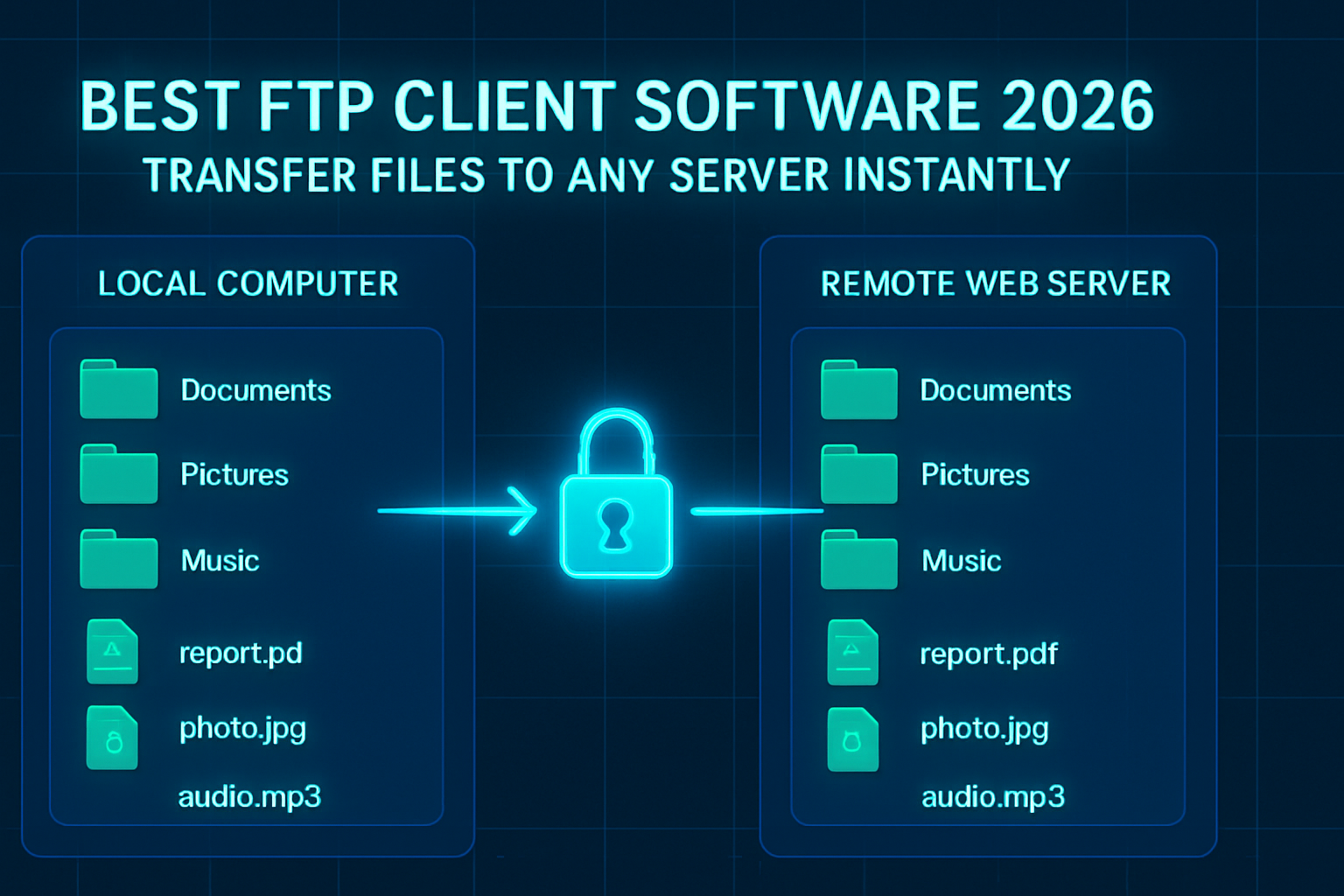
8. Local
files appear on the left, remote server on the right
9. Drag
files from left panel to right panel to upload
Security Best Practices for FTP Clients
•
Always use SFTP or FTPS — never plain FTP over the
internet
•
Use SSH key authentication instead of passwords for
SFTP when possible
•
Store server credentials in the client's Site Manager,
not in documents or spreadsheets
•
Enable master password for FileZilla's saved passwords
if sharing your computer
•
Restrict FTP/SFTP access to specific IP addresses in
your hosting firewall if possible
Conclusion
FileZilla remains the go-to FTP
client for cross-platform use due to its comprehensive feature set and wide
compatibility. WinSCP is the better choice for Windows users who need deep SSH
integration and scripting capabilities. Cyberduck stands apart for users who
need both traditional server access and cloud storage management in one tool.
Category:
Software Reviews
Tags:
best FTP client software, FileZilla review, WinSCP secure FTP,
Cyberduck cloud FTP, SFTP client Windows